GrowthProServices and ToolsBeginner Guides
How to Download Cubase AI 15
by Yamaha Creator Pass Team
After gaining access to Cubase AI 15 through either the Growth or Pro Pass, the next step is to get it downloaded on your personal computer.
1\. Start on Yamaha Creator Pass
- Once you're logged into your Yamaha Creator Pass account, go to:
- Find Cubase 15 AI and click Download. You’ll be redirected to the Steinberg website.

2\. Start the Download Process on Steinberg
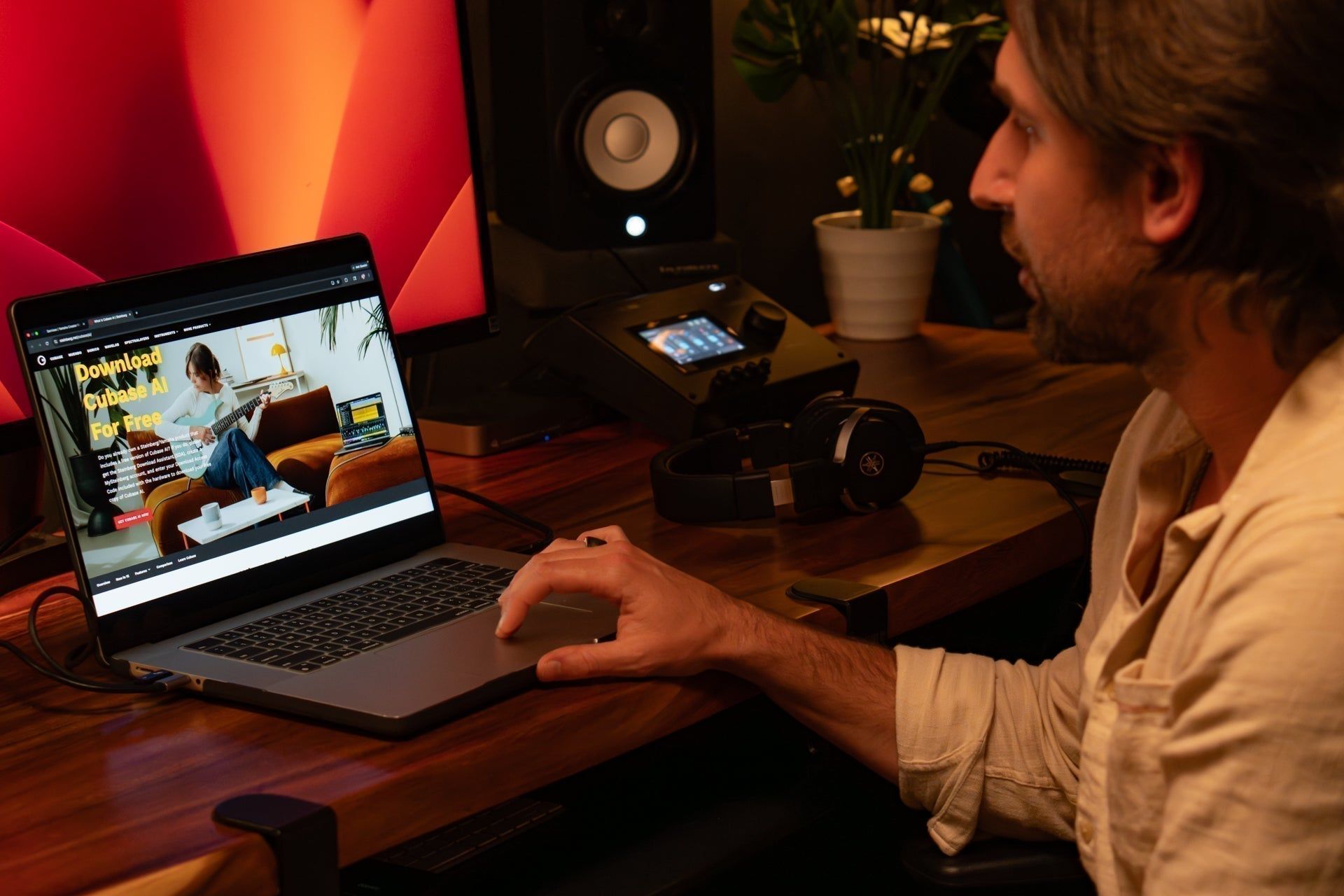
- On the Steinberg page, click the red button: “GET CUBASE AI NOW”
- Select the version that matches your device (Mac or Windows).

3\. Install Steinberg Download Assistant
- Open the downloaded Steinberg Download Assistant Setup (from previous step).
- Follow the installation instructions that pops on your screen.
- Agree to the terms and launch the Steinberg Download Assistant.

4\. Sign In or Create a Steinberg Account
- You’ll be prompted to sign in to your Steinberg account.
- If you already have an account, log in.
- If not, create a new Steinberg account to continue.
5\. Open Steinberg Web Launcher
- After logging in, launch the Steinberg Web Launcher when prompted.
6\. Redeem Your Access Code
- Go back to your Yamaha Creator Pass Your Services page and copy your Cubase AI 15 access code.
- Paste it into the Redeem Code section in the Steinberg Web Launcher, which can be found on the top left corner.

7\. Install Cubase AI 15
- Once your code is redeemed:
- Go to My Products (left-hand menu)
- Click Cubase AI 15
- Press Install All
- This will download Cubase AI along with all included instruments, libraries, loops, samples, and tools.

8\. Access Cubase AI 15
- Once you have finished downloading everything, the application for Cubase AI 15 can be found among your existing applications. There will be other applications downloaded, like Groove Agent SE and HALion Sonic, make sure you click on the app that says Cubase 15.
- When you open the application, it may ask you to log into your Steinberg account through the Steinberg Activation Manager.
- It will direct you to the Cubase AI 15 interface, and you're in!
Once Cubase AI 15 is installed and activated, you’re ready to start exploring all the included instruments, sounds, loops, samples, and creative tools. Open Cubase 15 from your applications, log in if prompted, and begin making music. Have fun with Cubase AI 15, and enjoy creating!