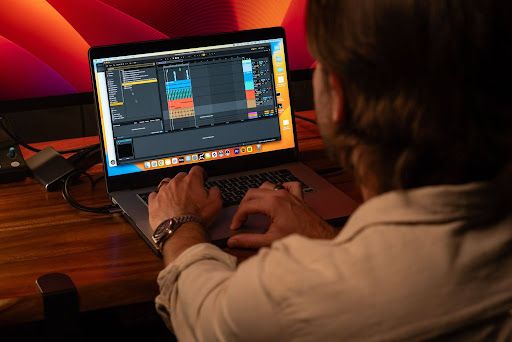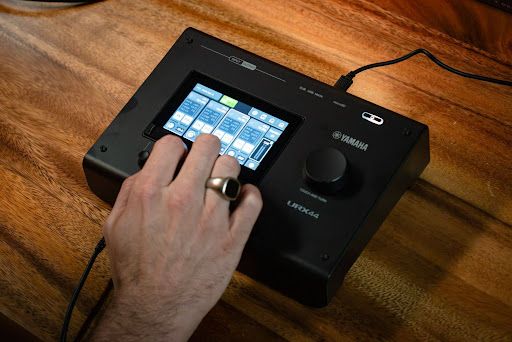
An audio interface is a device that connects microphones, instruments, headphones, studio monitors, and other audio equipment to a computer. It converts analog audio signals into digital audio that a computer can record and converts digital audio back into a signal you can hear through headphones or speakers.
Your computer's built-in audio hardware is designed for everyday listening and video calls, not recording. It usually has no inputs for XLR microphone cables, no way to power condenser mics, and no dedicated input for guitar or bass, which is exactly what an external audio interface adds.
In this guide, we’ll explore what an audio interface does, how it works, what you can connect to one, and how to decide whether you actually need one.
What Does an Audio Interface Do?
An audio interface connects your microphones and instruments to a computer and sends audio from the computer to your headphones or speakers. It also gives you controls for managing input levels and monitoring your sound.
The main functions include:
- Recording audio: Connect a microphone or instrument and send its signal to your computer or DAW.
- Monitoring audio: Send audio from your computer to headphones or studio monitors.
- Controlling input gain: Adjust the level of an incoming microphone or instrument signal.
- Boosting mic signals: Built-in preamps bring a microphone's low-level signal up to a usable recording level.
Behind all of this, the interface uses analog-to-digital conversion (ADC) to send incoming audio to the computer and digital-to-analog conversion (DAC) to send playback audio to your headphones or speakers.
Do You Need an Audio Interface?
You may need an audio interface if you want to connect professional microphones or instruments directly to your computer. It tends to give you a cleaner recording than your computer's built-in audio, since the preamps and converters are built for the job. Beyond that, it can also be useful if you want to record multiple sources, use studio monitors, or monitor your performance with low latency.
An audio interface is particularly useful for:
- Vocal recording: Connect an XLR microphone for recording vocals.
- Guitar and bass: Connect an electric guitar or bass directly to an instrument input.
- Music production: Connect microphones, instruments, and other studio equipment.
- Podcasting: Use an XLR microphone and monitor your voice through headphones.
- Recording multiple sources: Connect several microphones or instruments at the same time, depending on the interface.
- Mixing and monitoring: Listen through studio monitors or headphones while producing and mixing.
- Performing while recording: Hear yourself with minimal delay while recording vocals or instruments.
You may not need an external audio interface if you use a USB microphone or your computer's built-in microphone. A USB microphone already contains the hardware needed to convert its audio signal into digital data for a computer.
The right setup depends on what you want to record and which equipment you already have.
How Does an Audio Interface Work?
An audio interface takes an incoming analog audio signal, converts it into digital data for your computer, and then converts digital audio back into an analog signal for listening.
The basic signal path looks like this:
Microphone or Instrument → Preamp → ADC → Computer/DAW → DAC → Headphones or SpeakersEach stage does one specific job. Here is what happens at each stage:
- Microphone or instrument: A microphone or instrument produces an analog audio signal.
- Preamp: A microphone preamp boosts a microphone's relatively low-level signal to an appropriate level for recording. Instrument inputs can also provide the appropriate connection for sources such as electric guitar or bass.
- ADC: The analog-to-digital converter changes the audio signal into digital data that the computer can process.
- Computer/DAW: Your computer receives the digital audio, while your DAW can record, edit, process, and play it back.
- DAC: The digital-to-analog converter changes digital audio back into an analog signal.
- Headphones or speakers: The converted signal is sent to your headphones or studio monitors so you can hear the audio.
What Can You Connect to an Audio Interface?
You can connect microphones, instruments, headphones, studio monitors, and MIDI devices on some interfaces.
Common connections include:
- Microphones: Connect through microphone inputs, commonly using XLR cables.
- Electric guitar and bass: Connect directly to an instrument or Hi-Z input.
- Keyboards and synthesizers: Connect through appropriate audio inputs.
- Studio monitors: Connect to the interface’s monitor outputs.
- Headphones: Connect through a dedicated headphone output.
- MIDI devices: Connect through MIDI ports when available.
The number of inputs and outputs determines how many audio sources you can connect and monitor at the same time.
For example, an interface with two microphone inputs can typically accommodate two microphone sources simultaneously, depending on its design and available channels.
What Are the Inputs and Outputs on an Audio Interface?
The inputs and outputs on an audio interface let you connect your recording equipment and listening devices.
Here are some of the most common connections:
- XLR inputs accept microphone cables and carry balanced signals that resist noise over longer runs.
- Combo inputs accept both XLR and 1/4-inch jack connections in a single socket, so one input can take a mic or an instrument.
- Hi-Z or instrument inputs are designed for instruments such as electric guitars and basses. They let you connect these instruments directly to the interface.
- Line inputs accept line-level signals from keyboards, synths, drum machines, and other gear with line outputs. Never connect a guitar amplifier's speaker output to an interface input, since it can damage the interface.
- Monitor outputs send audio to studio monitors or other external speakers. They are typically used for listening to your DAW and other computer audio.
- Headphone outputs let you monitor your recording privately. Some interfaces provide more than one headphone output for setups involving multiple performers.
- MIDI in and out connections send performance and control data between compatible devices. MIDI does not carry audio itself.
- +48V phantom power supplies the power condenser microphones need to operate, and is switched on and off at the interface.
The exact combination of connections varies by interface, so consider what equipment you plan to connect before choosing one.
What Is Latency When Using an Audio Interface?
Latency is the delay between producing an audio signal and hearing the processed signal back. It can become noticeable when you are recording vocals or instruments while monitoring through your computer.
For example, you might sing into a microphone and hear your voice slightly later through your headphones. A noticeable delay can make it harder to perform naturally.
Buffer size is one factor that affects latency. A smaller buffer can reduce monitoring delay but may place more demand on your computer.
Some audio interfaces also offer direct monitoring, which routes an incoming signal to your headphones or monitors without requiring it to travel through the computer and DAW first. This can reduce the delay you hear while recording.
What Do Sample Rate and Bit Depth Mean?
Sample rate and bit depth are the two settings that define how your interface turns sound into digital data. Together, they determine how much detail is captured and how much storage your recordings take up.
Sample rate is how many times per second the interface measures the incoming audio, shown in kilohertz (kHz). A rate of 44.1 kHz, or 44,100 measurements per second, is the long-standing standard for music, while 48 kHz is the norm for video and is widely used in music production too.
Bit depth is how precisely each of those measurements captures the signal's level. It mainly affects dynamic range, or how far quiet details sit above the background noise. 16-bit is the CD standard, while 24-bit is the usual choice for recording because it leaves more room for clean, safe levels.
For most home recording, 44.1 kHz or 48 kHz at 24-bit is a practical starting point. Higher settings create larger files and demand more from your computer, so choose one sample rate for each project and stick with it.
Audio Interface vs. Built-In Sound Card vs. Mixer
These three devices overlap enough to cause confusion, but they're built for different purposes.
| Audio Interface | Built-In Sound Card | Mixer | |
|---|---|---|---|
| Main purpose | Recording and monitoring audio on a computer | General computer playback and basic input | Combining and balancing multiple live audio signals |
| Mic connections | XLR inputs with preamps and phantom power | Usually a 3.5 mm jack, no XLR or phantom power | XLR inputs with preamps and phantom power |
| Instrument input | Dedicated Hi-Z input | Not designed for it | Often available |
| Monitoring control | Dedicated headphone output, gain knobs, direct monitoring | Minimal, controlled in software | Extensive, with sends and channel controls |
| Computer connection | Core function | Built in | Only if it includes interface functionality |
| Best suited to | Home recording and production | Everyday listening and calls | Live sound, rehearsals, multi-source setups |
A dedicated audio interface typically provides connections designed for microphones and instruments, along with dedicated gain and monitoring controls.
A mixer is primarily designed to combine and control multiple audio signals. However, some modern mixers also include audio-interface functionality, allowing them to send audio to and receive audio from a computer.
How Do You Set Up an Audio Interface?
Setting up an audio interface is usually straightforward. You connect it to your computer, connect your recording and monitoring equipment, select it in your DAW, and set the appropriate input levels.
A basic setup looks like this:
- Install any required drivers or software from the manufacturer before you expect the interface to appear in your DAW.
- Connect the interface to your computer using the cable it came with, whether that's USB or another connection type.
- Connect your microphone or instrument to the appropriate input: XLR or combo for a mic, the Hi-Z or instrument input for guitar and bass.
- Connect your headphones or studio monitors to the interface's headphone or monitor outputs, not to your computer.
- Turn on +48V phantom power if you're using a condenser mic. Do this after the mic is connected, with the gain and listening volume turned down, and leave it off for dynamic mics.
- Select the interface in your DAW's audio settings as both the input and output device, so your software routes audio through it rather than your built-in hardware.
- Set your input gain by playing or singing at your loudest and turning the gain up until the level reads healthy without hitting the top of the meter.
- Enable direct monitoring if you're recording a performance and want to hear yourself without delay.
The exact process can vary depending on the interface, computer, operating system, and DAW, so check the instructions for your specific equipment.
What Should You Look For in an Audio Interface?
Choose an audio interface based on the equipment you plan to connect and how you plan to record. You do not necessarily need the interface with the longest specification list.
Consider these factors:
- Number of inputs and outputs: Make sure there are enough connections for your microphones, instruments, headphones, monitors, and other equipment.
- Computer connection: Check that the interface uses a connection supported by your computer.
- Monitoring options: Consider the headphone and monitor outputs available and whether direct monitoring is included.
- Preamps and conversion: Look at the microphone preamps and audio conversion specifications for your recording needs.
- Operating system and DAW compatibility: Confirm that the interface works with your computer's operating system and DAW.
Start with your actual recording setup. Knowing what you need to connect and how many sources you want to record can help you choose an interface that fits your workflow.
Final Takeaway
An audio interface is the bridge between physical sound and your computer: it takes microphones and instruments in, converts them into audio your DAW can record, and sends a clean signal back out to your headphones and monitors.
If you're working with a USB mic, you may not need one yet. If you're using XLR mics, guitars, or more than one source at a time, an audio interface can make the rest of your setup work.
Ready to turn your ideas into music? Subscribe to Yamaha Creator Pass and get access to Output Creator, LANDR, and tools designed to support your creative workflow, from making music to taking your finished ideas further. Start a 7-day free trial of Yamaha Creator Pass and find the plan that fits your setup.
FAQs
Can an audio interface record multiple microphones at once?
Yes, as long as it has enough microphone inputs and channels. An interface with two microphone inputs can record two mics simultaneously as separate tracks, while recording a full drum kit or a live band generally calls for an interface with considerably more inputs.
Does an audio interface need external power?
It depends on the interface. Many smaller models draw power from your computer through their USB connection, while larger interfaces, or those with more preamps and outputs, often require a separate power supply.
Can I connect an audio interface to an iPhone or iPad?
Some audio interfaces can connect to an iPhone or iPad, but compatibility varies between devices and interfaces. You may also need a suitable adapter or additional power, depending on the connection and the specific requirements of your mobile device.
Can two people use the same audio interface at the same time?
Yes, two people can use the same audio interface at the same time as long as the device has enough physical inputs and headphone or speaker outputs. This can be useful for recording two performers together or allowing both people to monitor the same session.
Does an audio interface work with any microphone?
An audio interface does not work with every microphone in the same way. Compatibility depends on the microphone’s connection type and power requirements, so XLR, USB, and other microphone types may require different connections or setups.